

Partner dashboard guide
See how to accept work, add drivers, manage team journeys and follow each booking through completion.
- Review jobs assigned to you or your team
- Add drivers for HQ approval and keep their details current
- Track agreed terms, progress, history and payouts
Follow the screen, one task at a time
Choose a numbered task. The highlighted area moves on the picture, and the instructions below explain what to do. Switch between desktop and mobile at any time.
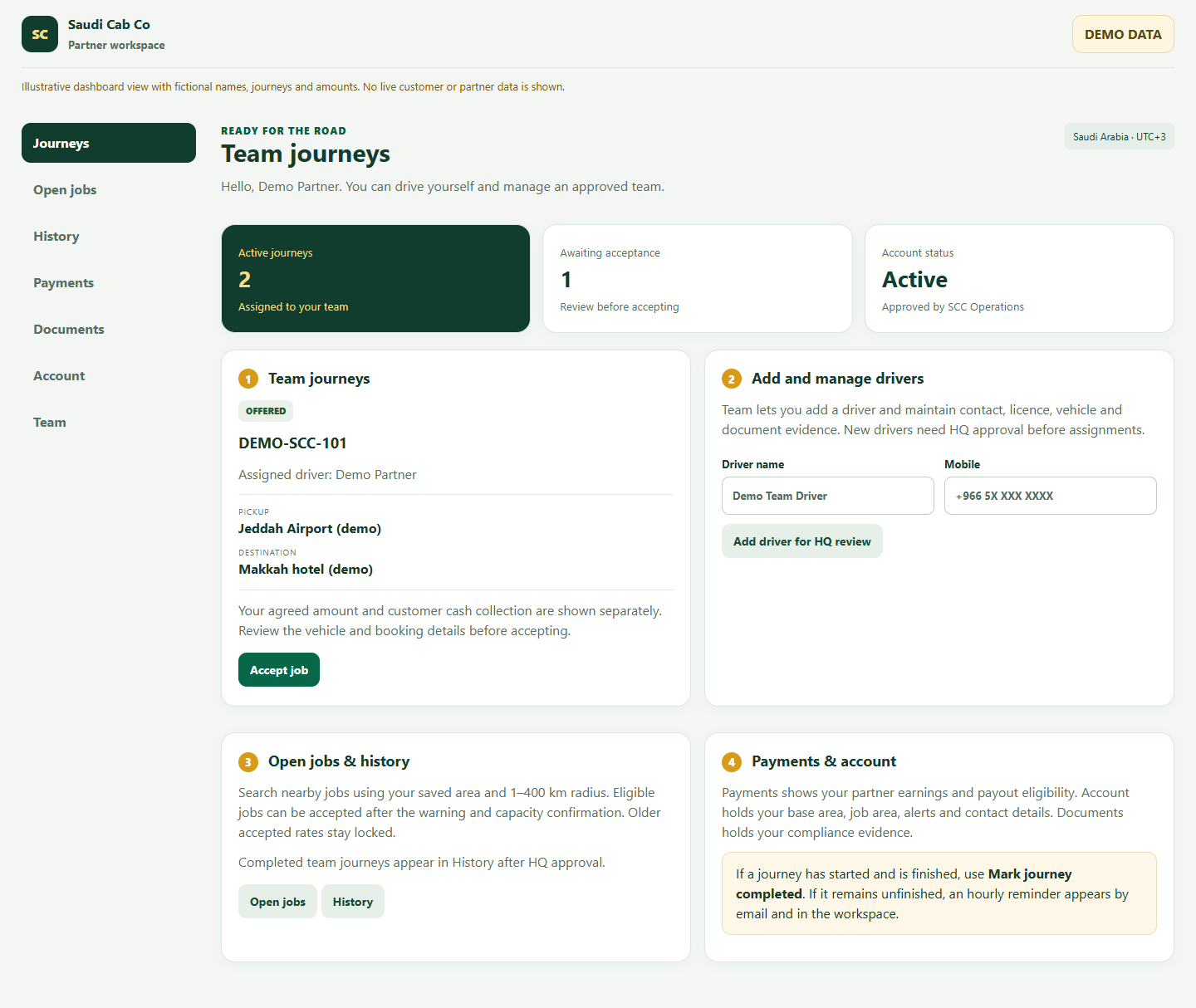

Review team journeys
Journeys contains your own work and bookings assigned to your managed team.
- Open each offer to check the route, pickup time, requested vehicle, passengers, bags and instructions.
- Confirm which approved driver and vehicle will actually perform the journey.
- Check Cash to collect in the journey details and the agreed terms sent by Operations before accepting.
A partner can drive personally. Accept only when your team can fulfil the booking; the confirmation warns about the customer impact and possible account strike.
Add and manage drivers
Use Team to add a driver and keep their operational details accurate.
- Enter the driver’s name and contact details, then provide licence, vehicle and document evidence.
- Keep existing team members’ details current when their phone, vehicle or documents change.
- Wait for HQ approval before expecting a new driver to receive assignments.
Use the managing partner workspace for team updates; do not share your login with drivers.
Find work and review history
Open jobs shows nearby paid work; History keeps finished and closed assignments.
- Set a Google verified Saudi area and a job radius of up to 400 km.
- Filter by area, distance, vehicle, passengers and earning; complete the capacity confirmation before accepting an eligible job.
- Use History to review past team jobs and their recorded terms.
The amount accepted for an older job remains fixed when the admin changes the board rate for future jobs.
Finish work and manage payouts
Your workspace combines journey reporting, payments and account maintenance.
- After the scheduled start and after the journey actually finishes, choose Mark journey completed. HQ reviews the report.
- Check Payments for earnings and payout eligibility; maintain verified bank details.
- Keep Account contact details, base area, alert area and Documents evidence current.
Until an active journey is reported complete, the workspace alerts you and an hourly email reminder is sent. Contact Operations about problems.
Questions people ask
Can I accept a job for one of my drivers?
Use the partner controls for an approved managed driver. Check that the named driver and vehicle can fulfil the trip before accepting.
Can a new team driver take jobs immediately?
No. HQ approval and required compliance checks are needed before new assignments.
When does a completed journey enter History?
The partner reports completion after the trip; HQ then approves the booking completion. Completed or closed jobs remain in History.
Open your own dashboard
Use the signed-in view for your real journeys, account details and actions.