

Customer dashboard guide
Find a booking, understand what has been paid and what remains due, add the trip to your calendar and request changes.
- Read the booking status and payment split
- Open journey details and add a booking to your calendar
- Manage contact details, notices and saved payment methods
Follow the screen, one task at a time
Choose a numbered task. The highlighted area moves on the picture, and the instructions below explain what to do. Switch between desktop and mobile at any time.
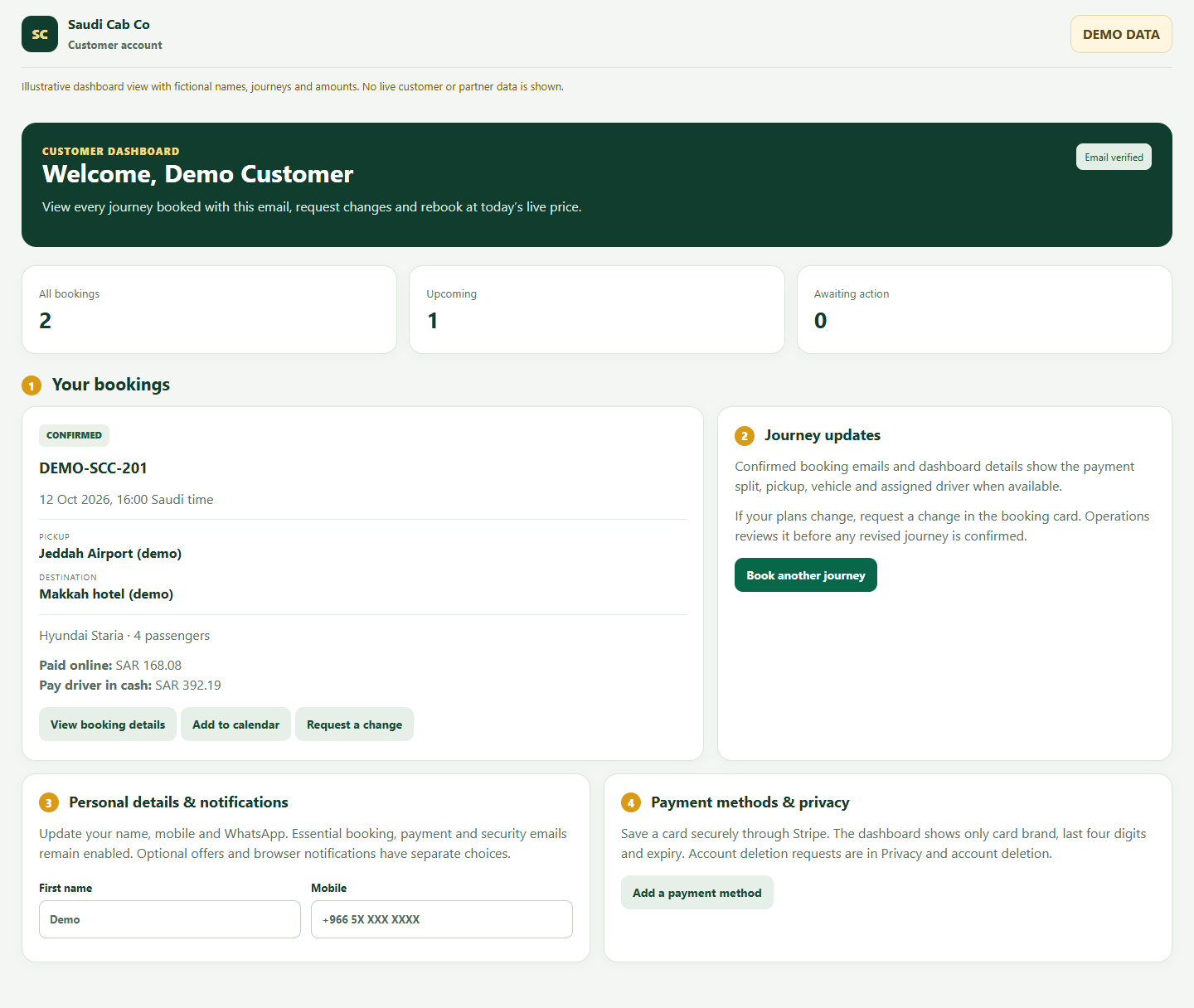

Find your booking
Sign in with the email used to book, then open the booking card.
- Check the reference, booking status, pickup time in Saudi time, route, vehicle and passenger count.
- Read Paid online and Pay driver in cash as separate amounts, in the currency used for the booking.
- Open View booking details for the fuller itinerary and assigned driver details when available.
A paid request can remain provisional until Operations confirms availability. Use the status shown in your account and confirmation email.
Plan and change a journey
Use the actions on the booking card for practical next steps.
- Choose Add to calendar to save the journey date and time.
- If plans change, choose Request a change and describe the new details clearly.
- Review the response from Operations before treating a revised journey as confirmed.
A change request is reviewed; sending it does not automatically change the confirmed itinerary or price.
Update details and notices
Your account details help the team reach you about a booking.
- Check and update your name, mobile and WhatsApp number.
- Verify your email if the account asks you to do so.
- Choose optional offers and browser notification preferences separately.
Essential booking, payment and security messages remain active even if optional marketing is off.
Manage payment and privacy
Use the account sections for payment methods and privacy requests.
- Add or remove a saved card using the secure payment flow when available.
- Check only the card brand, final four digits and expiry shown in the dashboard; full card numbers are not stored there.
- Use Privacy and account deletion for a data request or account deletion request.
For an urgent airport pickup or a payment discrepancy, contact support with the booking reference.
Questions people ask
Where can I see what I still owe?
Open the booking card or detailed view. Paid online and Pay driver in cash are shown as separate amounts.
Does Request a change alter my booking immediately?
No. Operations reviews the request and confirms any revised itinerary and amount.
When will I see my driver’s details?
Driver details appear when a driver has been assigned and the booking is confirmed. Your booking email and account should reflect that status.
Open your own dashboard
Use the signed-in view for your real journeys, account details and actions.