

Driver dashboard guide
Learn how to review a job, accept nearby work, record the journey and keep your account ready.
- Check the route, vehicle, passengers and customer cash before accepting
- Find suitable jobs in your saved Saudi service area
- Report completion and track previous journeys
Follow the screen, one task at a time
Choose a numbered task. The highlighted area moves on the picture, and the instructions below explain what to do. Switch between desktop and mobile at any time.
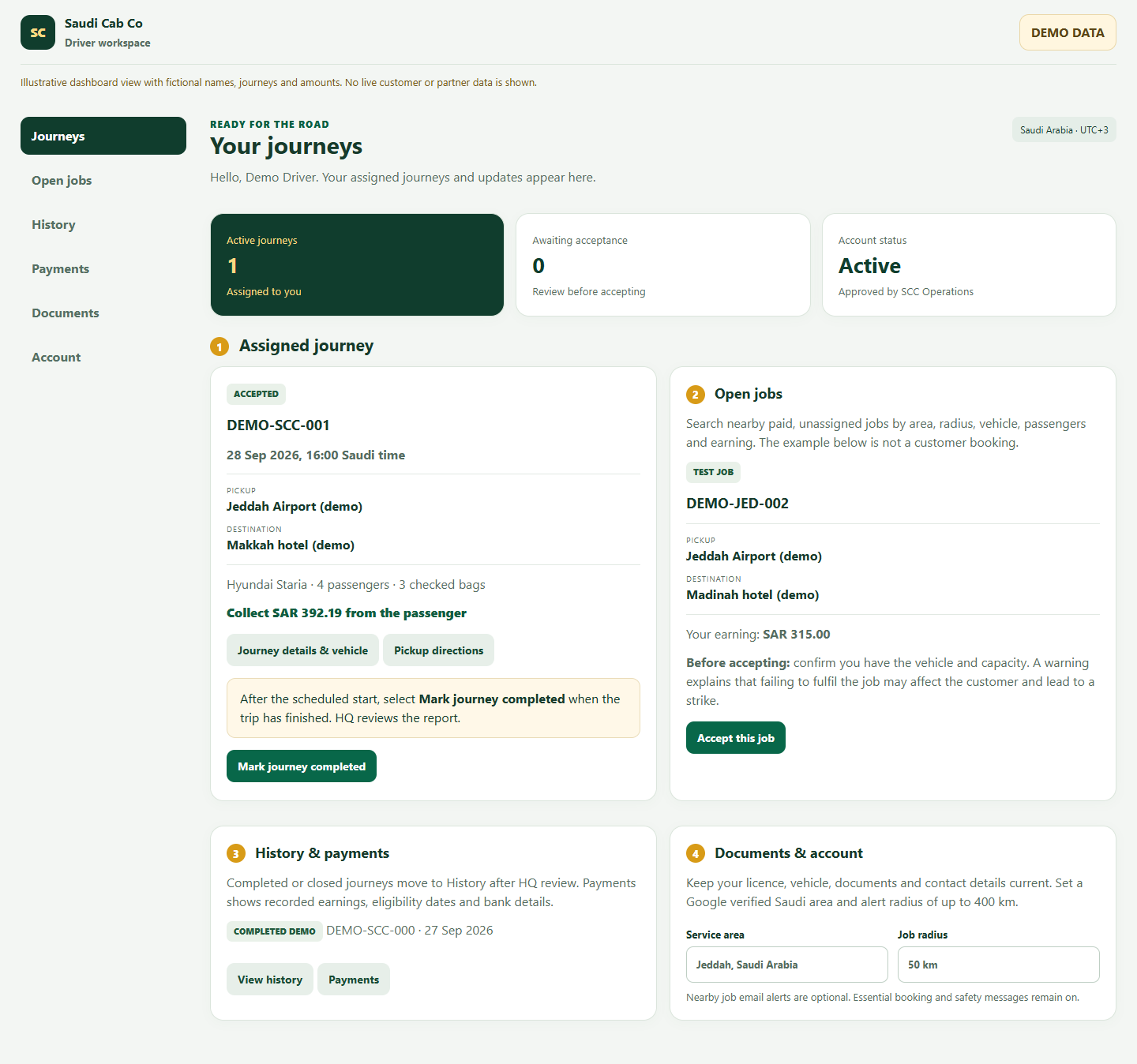

Review an assigned journey
Open Journeys and read the whole assignment before accepting an offer.
- Check the pickup date and time in Saudi time, meeting point, destination and flight information.
- Match the requested vehicle, passenger and luggage capacity, child restraints and any special instructions.
- Read Cash to collect in the journey details. This is what the passenger pays you on the day; check Payments for any separate HQ payout.
Accept only when you and the correct vehicle can fulfil the booking. HQ can assign and force accept from its admin screen when needed.
Find and accept open jobs
Open jobs shows paid, unassigned work near your saved service area.
- Set a Google verified job area in Account, then choose a radius from 1 to 400 km.
- Filter by location, distance, vehicle class or type, passengers and earning. The board earning shown is after the current SCC fee.
- For an eligible job, tick the capacity confirmation and choose Accept this job. Read the warning before confirming.
Some fares require an Operations payment check and show Ask Operations instead. Once accepted, that job’s agreed terms stay fixed even if the board rate changes later.
Report progress and completion
Use journey actions to record events that have actually happened.
- Record en route, arrival and passenger collection as they occur.
- After the scheduled pickup time and after the trip finishes, choose Mark journey completed.
- Wait for HQ approval; your completion report does not itself mark the customer booking completed.
An unfinished job shows a dashboard alert and triggers an hourly email reminder after its start time. If the journey is delayed or cannot be fulfilled, contact Operations.
Keep your account ready
Use the remaining sections to keep your work record and eligibility current.
- History holds completed or closed journeys with their recorded details.
- Payments shows recorded earnings, payout eligibility and bank details.
- Documents holds licence, vehicle and compliance evidence. Account holds contact details, base and job area, radius and optional nearby job alerts.
Essential booking and safety notifications stay active. Keep your phone and WhatsApp details current.
Questions people ask
Why is there no Accept this job button?
That fare needs an Operations payment check, or the job is no longer eligible. Use Ask Operations on the job card.
Can the amount change after I accept?
Changing the board fee affects new claims. The terms of an accepted booking stay locked.
The trip is still underway. Should I mark it completed?
No. Report completion only after the passenger reaches the agreed destination. Contact Operations about a delay or problem.
Open your own dashboard
Use the signed-in view for your real journeys, account details and actions.